Table of Contents
ToggleYour Roomba isn’t navigating like it used to, or maybe it just won’t connect to WiFi anymore. A reset might be exactly what you need to get things running smoothly again. Whether you’re dealing with app connection issues, navigation glitches, or simply want to wipe your device clean before selling it, knowing how to reset your iRobot Roomba is a practical skill every owner should have. The good news? It’s straightforward, takes just a few minutes, and you don’t need any special tools. Let’s walk through what you need to know and get your robot vacuum back on track.
Key Takeaways
- A soft reset is the recommended first troubleshooting step for connectivity and performance issues, solving problems about 70% of the time without losing your WiFi or maps.
- Learn how to reset irobot roomba by pressing the reset button for 5-10 seconds for a soft reset or 10-15 seconds for a hard reset, depending on your model.
- A hard reset completely wipes your Roomba to factory settings, erasing WiFi credentials, saved maps, and user data—essential before selling or switching to a new network.
- Different Roomba models like the j7+ and s9+ require slightly longer reset times (15-20 seconds) and have reset buttons in different locations, so check your manual for accuracy.
- Always start with a soft reset before attempting a hard reset to avoid unnecessary data loss and the need to re-setup your WiFi and home maps.
- Poor WiFi signal during setup is a common issue after resetting, so move your dock closer to your router and verify your network credentials to ensure successful reconnection.
Why You Might Need to Reset Your Roomba
A reset isn’t something you do on a whim, it’s a troubleshooting step for real problems. The most common reason homeowners reset their Roomba is connectivity issues. If your robot won’t connect to the iRobot app, keeps dropping WiFi, or displays error codes that won’t clear, a reset often solves it by wiping out corrupted settings and starting fresh.
You might also need to reset if your Roomba is behaving erratically: getting stuck in loops, not recognizing room layouts it previously learned, or failing to return to its dock. Sometimes after a software update, the device acts up temporarily, and a reset clears out conflicting data. Performance degradation, like slower cleaning patterns or reduced suction response through the app, can also signal that a reset would help.
Another legitimate reason is privacy and resale. If you’re selling or giving away your Roomba, a full reset removes your home WiFi credentials, user account data, and saved maps so the next owner starts fresh. This is especially important if you had the device mapped to a multi-floor home or had custom room labels stored.
Soft Reset vs. Hard Reset: Which One Do You Need?
Not all resets are created equal. A soft reset is like rebooting your computer, it restarts the system without erasing anything. A hard reset is the nuclear option: it wipes all settings, removes WiFi credentials, deletes learned maps, and returns the Roomba to factory settings as if it just came out of the box. Knowing the difference saves you time and frustration.
Start with a soft reset if the Roomba is acting sluggish, has minor connectivity hiccups, or is stuck in a single error loop. It often fixes temporary glitches without losing your home WiFi connection or cleaned maps. If a soft reset doesn’t work after waiting a few minutes and letting the Roomba re-boot, then move to a hard reset.
A hard reset is necessary when you’re selling the device, if you’re switching to a completely new WiFi network, or when app-based troubleshooting and soft resets haven’t resolved the issue. Just know you’ll need to re-add your WiFi and re-map your home afterward.
Performing a Soft Reset
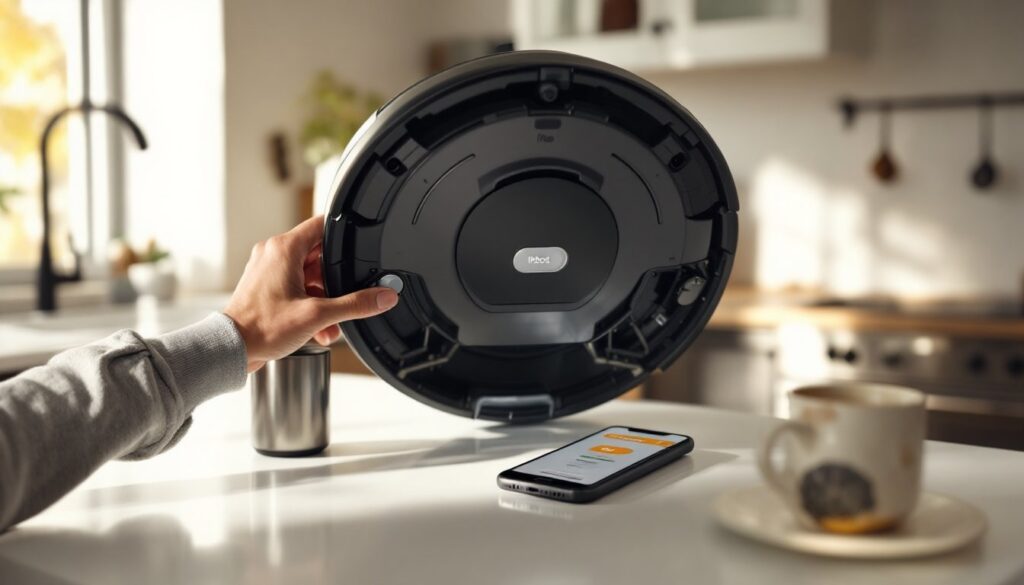
A soft reset takes 30 seconds. Flip your Roomba over (or locate the dock if you’re using a self-emptying model). Find the reset button, it’s usually a small, recessed button near the wheels or on the underside. Press and hold it for 5 to 10 seconds until you hear a beep or see a light flash. That’s it. Release the button, flip the Roomba right-side up, and wait 2 to 3 minutes for it to fully restart. You’ll hear additional beeps as it boots back up.
Your WiFi connection and maps remain intact. Open the iRobot app after the Roomba restarts, it should reconnect automatically or prompt you to reconnect. If the problem persists, you’ve confirmed that a hard reset is your next move.
Performing a Hard Reset
A hard reset is equally simple but has bigger consequences: you’re wiping everything. Place your Roomba on its dock or a flat surface. Locate the reset button again (same spot as the soft reset). This time, press and hold it for 10 to 15 seconds, you’re looking for either a long beep sequence or a light pattern change that indicates the device is resetting to factory settings. On some newer models, you’ll see the device lights cycle through colors.
After releasing the button, wait 1 to 2 minutes without interrupting the Roomba. You’ll hear beeps and may see lights flashing during the reset process. Once the beeping stops and the lights stabilize, the reset is complete. Your Roomba is now blank, no maps, no WiFi, no user data. The first time you power it on after a hard reset, it will either display a code prompting setup or ask you to add it through the iRobot app, depending on your model.
Step-by-Step Reset Instructions
The exact reset process varies slightly depending on your Roomba generation. Here’s how to handle the most common models you’ll encounter in 2026.
For Standard Roomba Models
Standard models include the Roomba i3, i4, e5, e6, and 600/700/800 series, basically, most traditional disc-shaped Roombas without self-emptying docks.
For a soft reset:
- Turn off your Roomba or place it on the dock.
- Flip the unit over or access the underside.
- Locate the small reset button (recessed, near the wheel area).
- Press and hold for 5 to 10 seconds until a beep sounds.
- Flip right-side up and wait 2 to 3 minutes for restart.
- Open the iRobot app: it should reconnect to your WiFi automatically.
For a hard reset:
- Ensure the Roomba is powered off or on the dock.
- Find and press the reset button for 10 to 15 seconds.
- You’ll hear multiple beeps or see lights flash indicating the reset is underway.
- Wait 1 to 2 minutes without touching the device.
- The Roomba will emit final beeps when the reset completes.
- Power the device back on (or let it start from the dock).
- Use the iRobot app to add it to your WiFi and home again.
Many people find that external resources like step-by-step instructions for resetting various Roomba models provide additional visual guidance if you’re unsure about button locations on your specific model.
For Roomba j7+ and s9+ Models
Newest Roombas, the j-series and s9+, have self-emptying docks and more advanced software. The reset process is slightly different.
For a soft reset:
- Keep the Roomba docked or on a flat surface.
- Locate the clean button (the large circular button on top) and the reset button (usually a small recessed button).
- Press and hold the clean button for 5 to 10 seconds.
- You’ll hear a beep and the lights will flash.
- Wait 2 to 3 minutes for the system to restart.
- Check the iRobot app for reconnection.
For a hard reset on j7+/s9+:
- Keep the Roomba on its dock (don’t remove it).
- Find the reset button on the underside or behind the dustbin area.
- Press and hold for 15 to 20 seconds (these models take slightly longer).
- Watch for a color-changing light sequence or multiple beeps.
- Wait 1 to 2 minutes: the dock may make sounds during this time.
- Once all lights stabilize and beeping stops, the reset is done.
- Remove the Roomba from the dock and power it on manually or via the dock.
- Use the iRobot app to set up WiFi and create a new home map.
For j7+ owners, you’ll lose any saved No-Go Zones and custom room labels, so note those down before resetting if you plan to recreate them. The app stores some of this information in your iRobot account, so logging back in might partially restore previous settings.
According to detailed reset processes for various Roomba generations and troubleshooting, many users skip troubleshooting and jump straight to a hard reset. That’s fine if you’re prepared to re-setup your WiFi and maps, but always try a soft reset first, it solves problems 70% of the time without losing your history.
One more pro tip: if you’re resetting because of persistent WiFi issues, check your router after the reset. Make sure your WiFi network name and password are correct, and consider moving the dock closer to your router temporarily while adding the Roomba to the app. Poor signal strength during setup is a common stumbling block. You can also explore app-based and physical reset methods for various models to understand which option fits your specific Roomba generation best.